Help
Home
Home is your daily desk. Your Balance shows the signals that can be assessed from your records. Buddy helps you log the day, and Today’s Progress updates after you save. Beginner, Standard, and Power User show the same records with more or less detail — switch with PX in the bottom bar.

Camera is the food log. Water, Weight, and Cart sit beside it as quiet chips. Cart is last. The Camera chevron picks Camera, Photo, Receipt / File, Text input, or Voice (A–Z).
Your Home screen (mobile)
Home is the daily desk. Same data in every Experience Mode — only how much you see changes. Tap the ? in the top bar to label Home in waves. On-screen Click here to CONTINUE / Click here to go BACK, and Click here to CLOSE on the last wave — nothing auto-advances. Tap PX in the bottom bar to try Beginner, Standard, or Power User. No data loss.
PX Beg
Beginner
Your day at a glance: Balance, calorie progress, three nutrient bars and saved meals. One clear next action.
Bottom tabs: Home · Foodiary · + · Progress · Menu
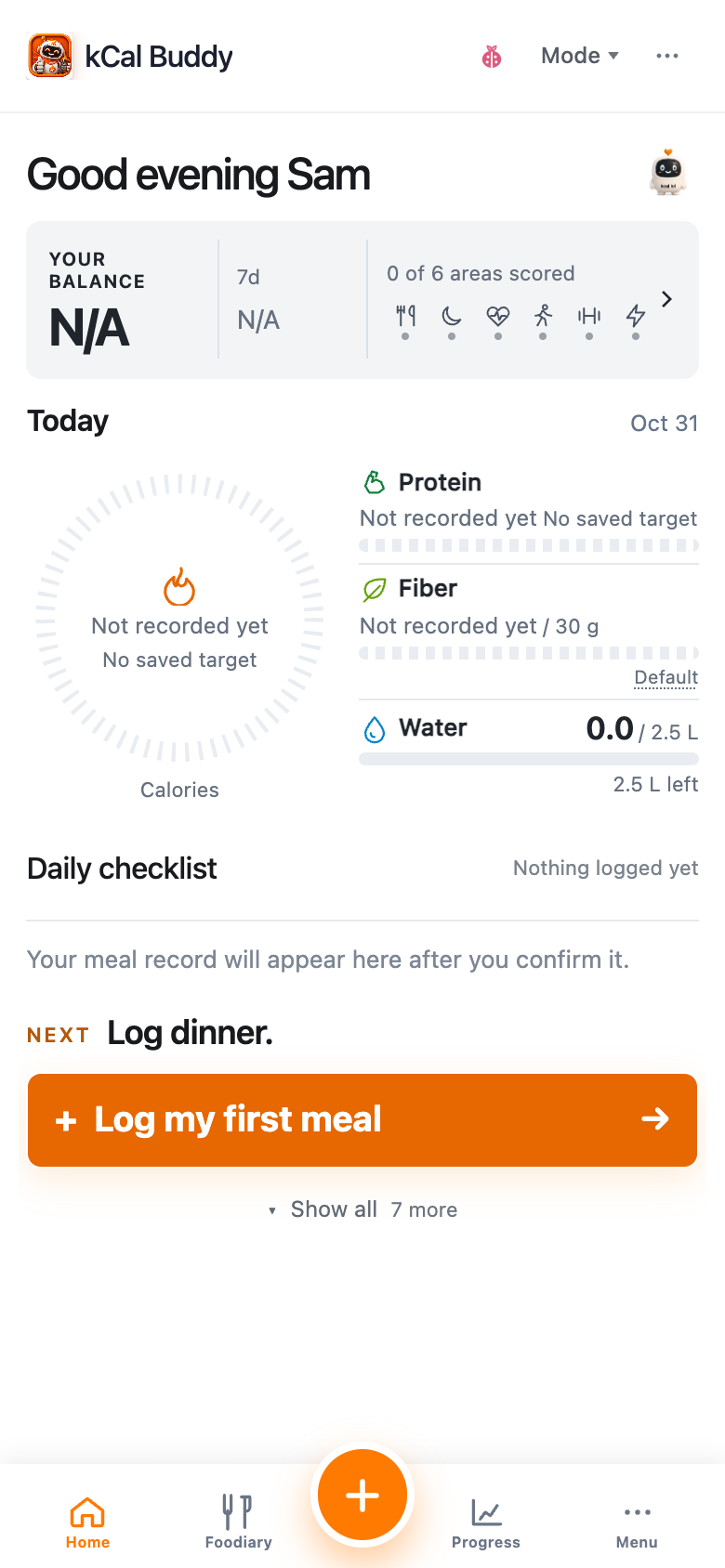
- 1Top bar
kCal Buddy, Mode and More. Help, language, appearance and Settings are in More.
- 2Your Balance
Tap the real Balance points for the calculation; tap its history or six signals to explore the evidence.
- 3Today
One calorie arc plus protein, fibre and water bars. Tap any metric for details. Daily burn is a separate estimate.
- 4Done and next
Saved meals show your own photos when available, or their saved facts. Tap a meal for Foodiary. One NEXT and the orange Buddy action sit below; Show all reveals other tasks.
- 5Bottom tabs
Home · Foodiary · the circular orange + · Progress · Menu. The existing footer stays.
PX Std
Standard
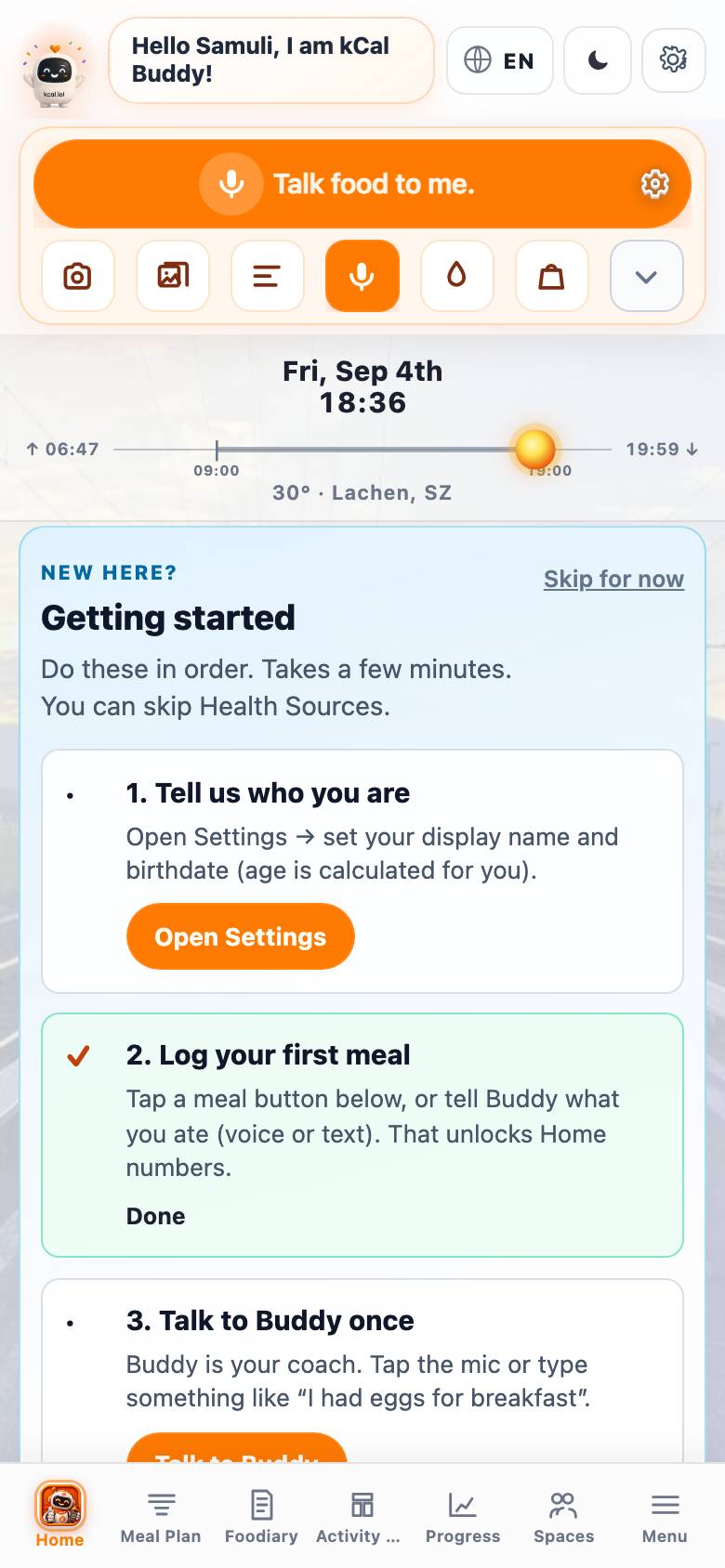
Buddy is the host. Today’s Progress is the compass. Health cards sit under the budget.
Bottom tabs: Home · Meal Plan · Foodiary · Activity · Progress · Spaces · Menu
- 1Buddy host
Larger Buddy and a short greeting. Language, theme, and Settings stay on the right.
- 2Toolbox
Camera is the orange hero. Water, Weight, and Cart stay quiet (white chips, colored icons). Cart is last. Dashboard cards keep the strong colors.
- 3More
Camera’s chevron: Camera, Photo, Receipt / File, Text input, Voice — A–Z. Text is how you type a meal.
- 4Today clock
Date, time, sun timeline, weather. Context — not a log.
- 5Today’s Progress
Daily energy budget: Food · Exercise · Remaining. No TEF in Standard.
- 6Health cards
Protein · Fiber · Water · Drinks. Tap a card for details.
- 7Bottom tabs
Home plus Meal Plan, Foodiary, Activity, Progress, Spaces, PX Std, Menu.
PX Pwr
Power User
Same Home as Standard, with TEF and leucine on the budget and protein card.
Bottom tabs: Same tabs as Standard · desktop can add Reports · Insights · Goals
- 1Buddy host
Same toolbox as Standard: Camera · Water · Weight · Cart.
- 2Energy budget + TEF
Food · TEF · Exercise · Remaining. TEF is the extra burn from eating — not a second meal.
- 3Protein + leucine
Protein card shows a leucine estimate. Fiber, water, drinks stay as in Standard.
- 4Everything else
Clock, tip, mission, Spaces glance — richer detail, same jobs. PX Pwr in the bottom bar.
PX is beta presentation only. Your logs stay. Switch anytime.
Open Home, tap Camera (or Water / Weight), confirm Buddy’s estimate, and watch Today’s Progress (or your Beginner task list) update after save.
Why this matters
Wrong-door logging is the most common frustration. People open Foodiary to invent a blank row, leave kcal empty, then wonder why Progress stays at zero. Home is the smart door into the ledger.
The orange Camera button is Buddy’s main food log. Water, Weight, and Cart sit beside it. Text input is a Camera method, not a second Food button.
Experience Mode (PX) is presentation only. Beginner keeps the day visual and compact. Standard shows the budget. Power adds TEF and leucine. Your logs do not change.
What to understand
What you should recognise on Home (mobile).
- 1
Your Balance — current points, scored-area coverage, and recent history; tap the number for the calculation
- 2
Buddy host — greeting plus Camera, Water, Weight, Cart
- 3
Camera — tap to scan a pack or plate; chevron chooses Camera, Photo, Receipt / File, Text input, Voice
- 4
Water · Weight · Cart — run immediately
- 5
Today’s Progress (Standard / Power) or Today’s Health + task list (Beginner)
- 6
PX pill in the bottom bar — Beg / Std / Pwr
- 7
Bottom tabs — Beginner is Home · Foodiary · Progress · Menu; Standard and Power add Meal Plan, Activity, Spaces
Truth: Prefer Home for new meals. Foodiary is for review and corrections.
Truth: Camera logs immediately with the selected method. The chevron only chooses the method.
How to do this in real life
Make Home the reflex.
- 1
Open the app to Home
- 2
Tap Camera to scan, or pick Text input from the Camera chevron to type
- 3
Confirm Buddy’s estimate; adjust grams if you know better
- 4
Use Water, Weight, or Cart when that is the job
- 5
Glance at Today’s Progress or the task list — then return to life
Buddy reduces friction and teaches while capturing. Progress on Home is immediate feedback that the loop worked.
home-overview.png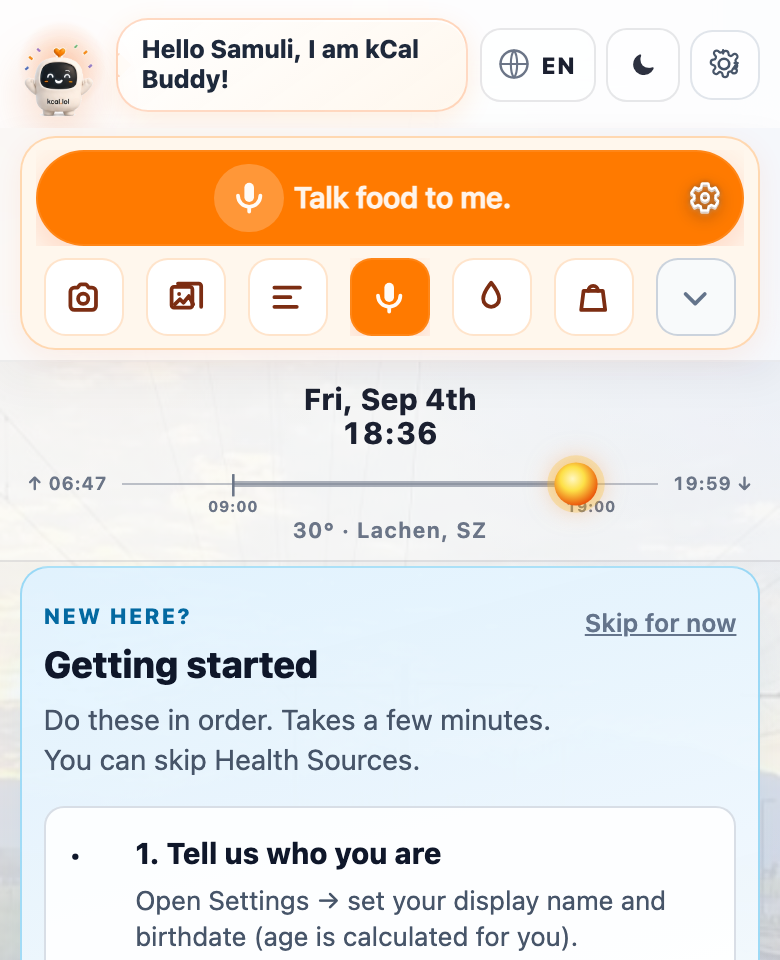
home-quick-actions.png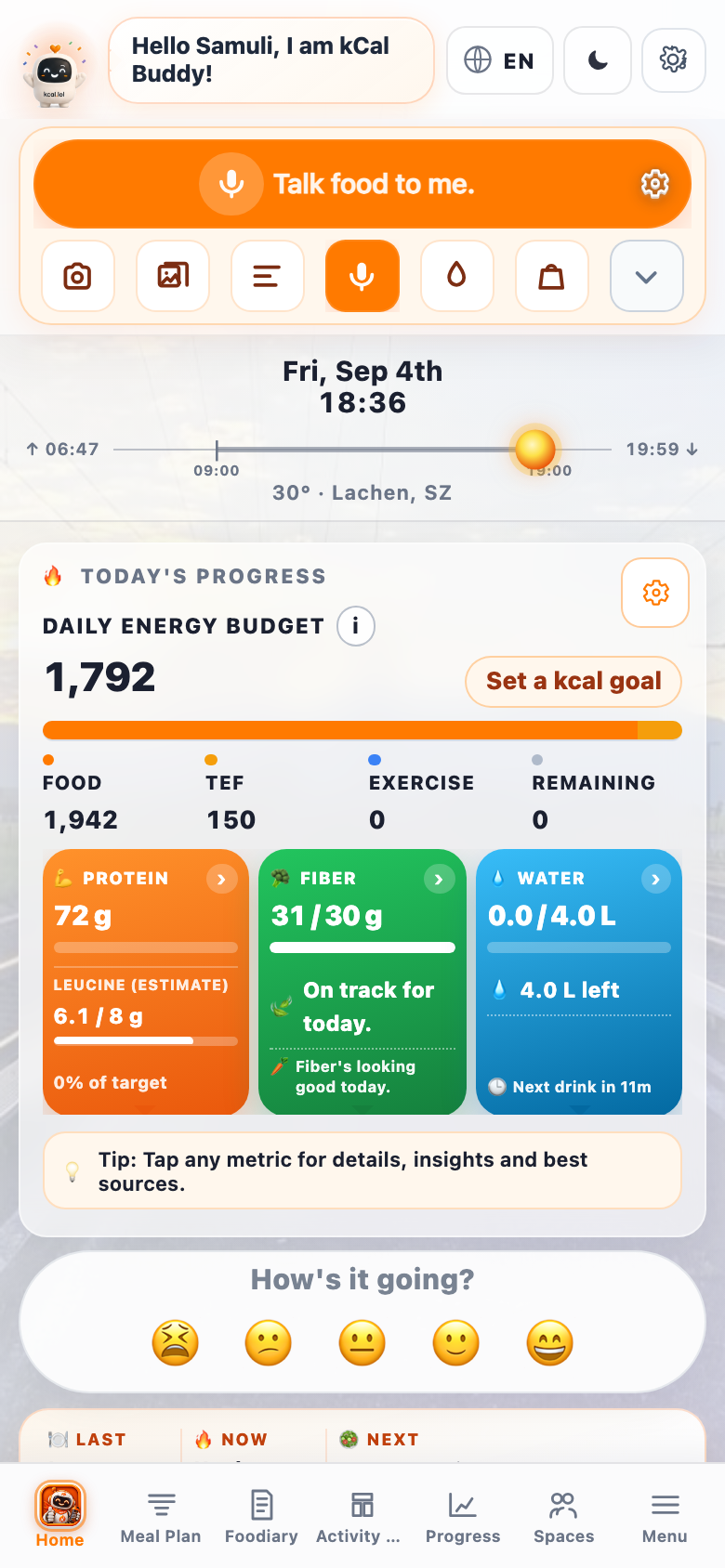
home-budget.png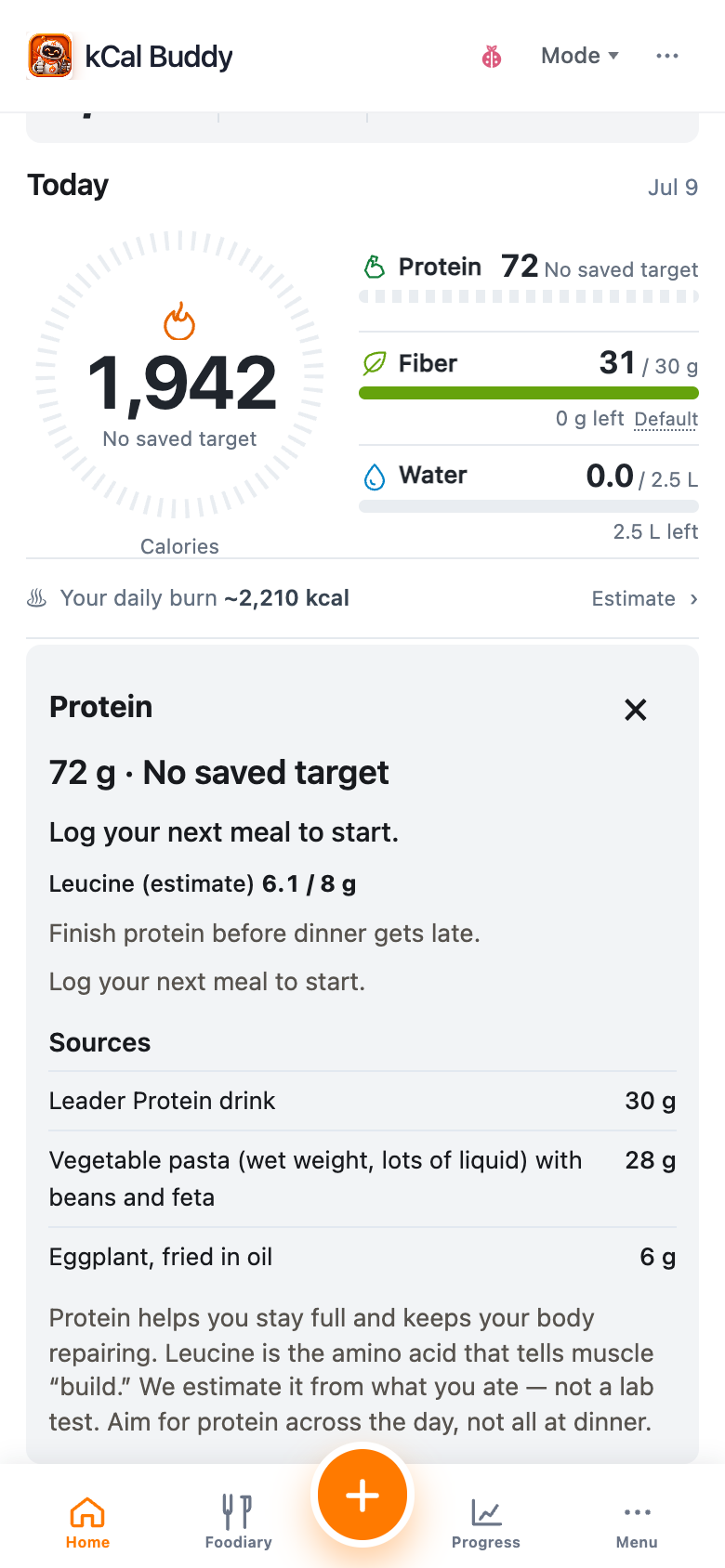
home-beginner-metric.png — Example Sam — Beginner Home with the selected daily metric details. Example records; your values depend on your diary and saved targets.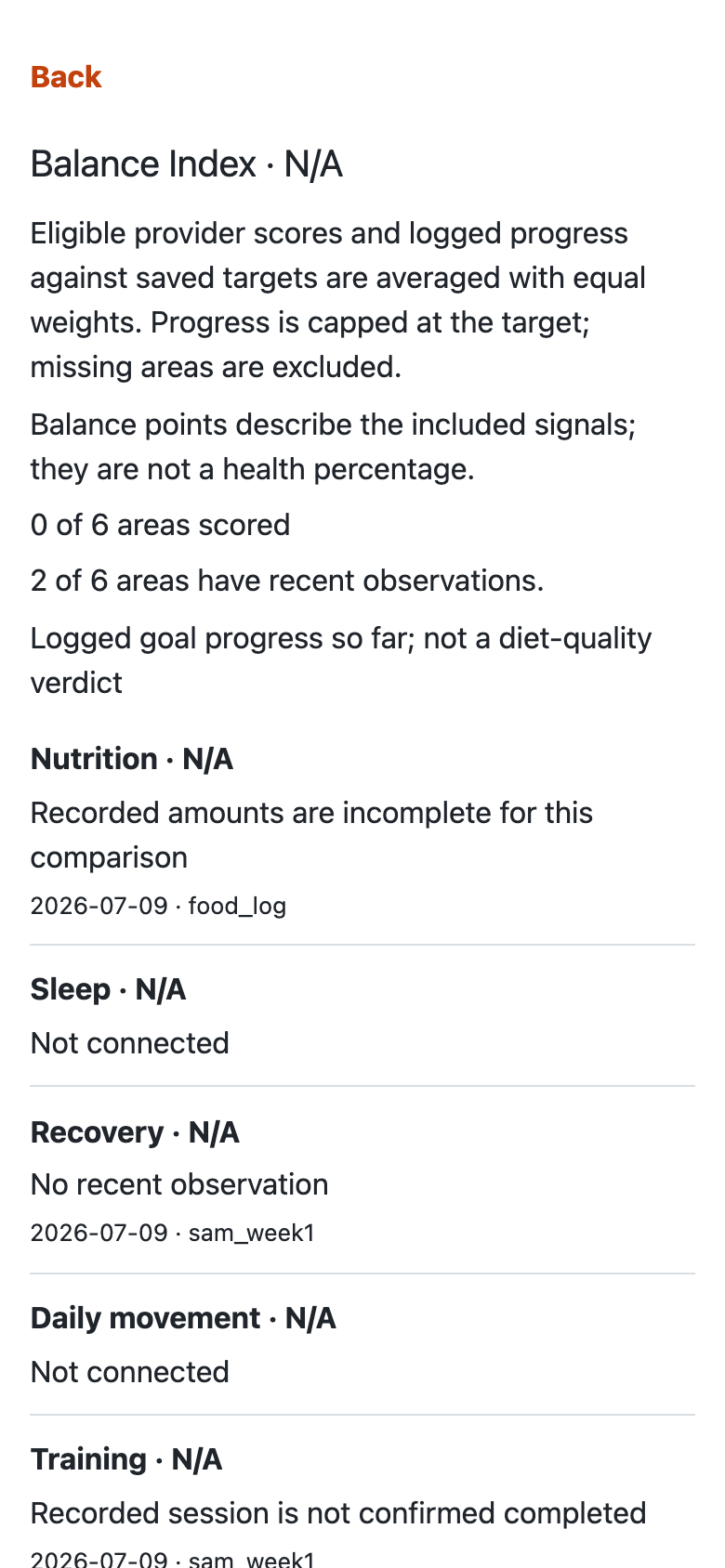
home-balance-calculation.png — Example Sam — Balance calculation. Availability depends on recorded evidence; values may show N/A.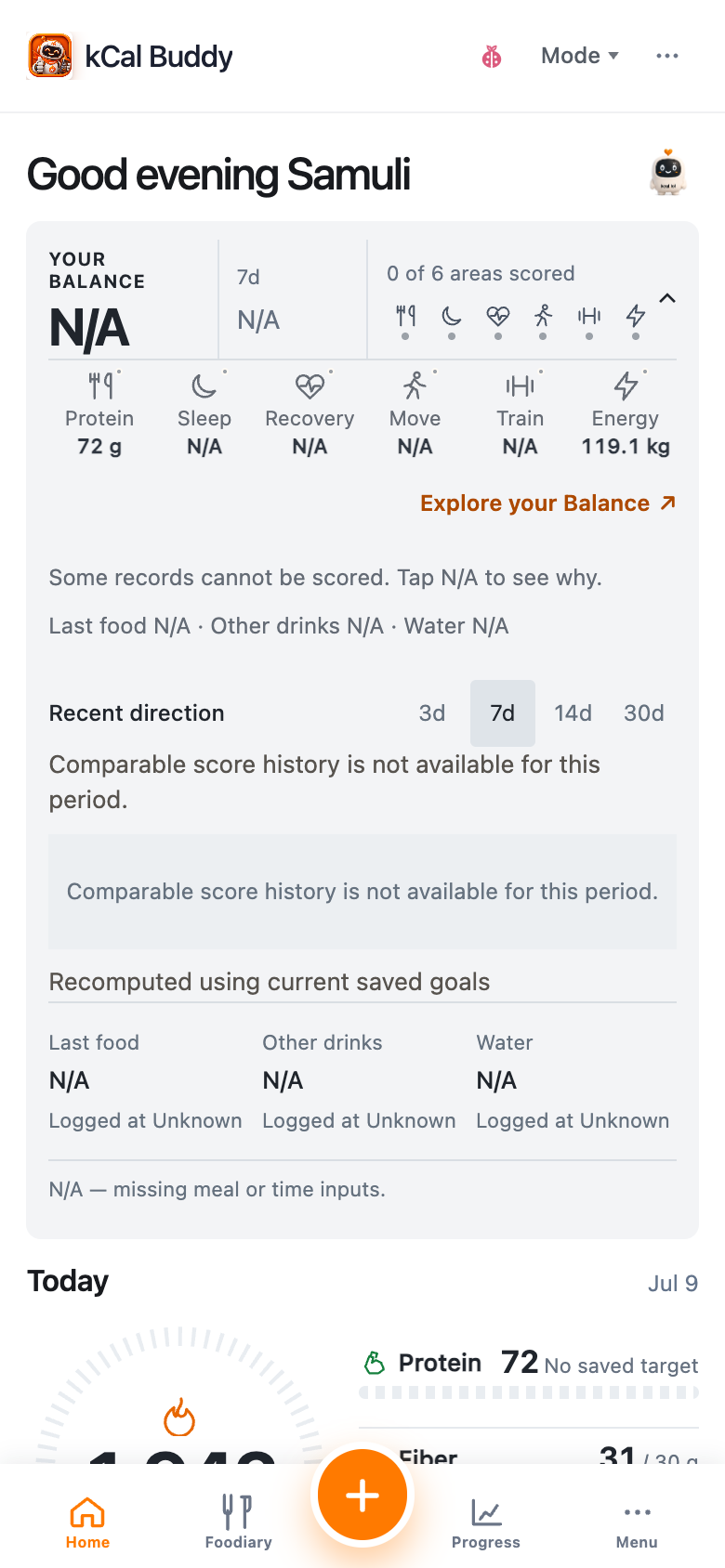
home-balance-history.png — Example Sam — recomputed Balance history. Available days depend on recorded evidence; gaps or N/A may appear.Beginner: your day at a glance
The calorie arc shows what you have logged against your saved intake plan. Beside it, three progress strips show protein, fibre and water. Tap a metric for its details. An unrecorded amount stays unknown; estimated daily burn is shown separately from the intake plan.
Done meals use your own saved photo when one is available, with the meal name and logged energy. Without a photo, the entry keeps its real name and a simple icon. Tap the meal to open Foodiary. No sample or stock photo stands in for your meal.
Tap the Balance number for its calculation. Tap the signal strip or history to reveal area details and the recorded trend. One NEXT and the orange Log Food with Buddy button keep the next action clear. A protein remainder is for the day, not an instruction to eat that amount in one sitting. Show all reveals the other tasks; the body-story entry stays available. The existing bottom bar and orange PLUS stay unchanged. Opening Home or its details does not generate an AI review.
Your Balance: points from available signals
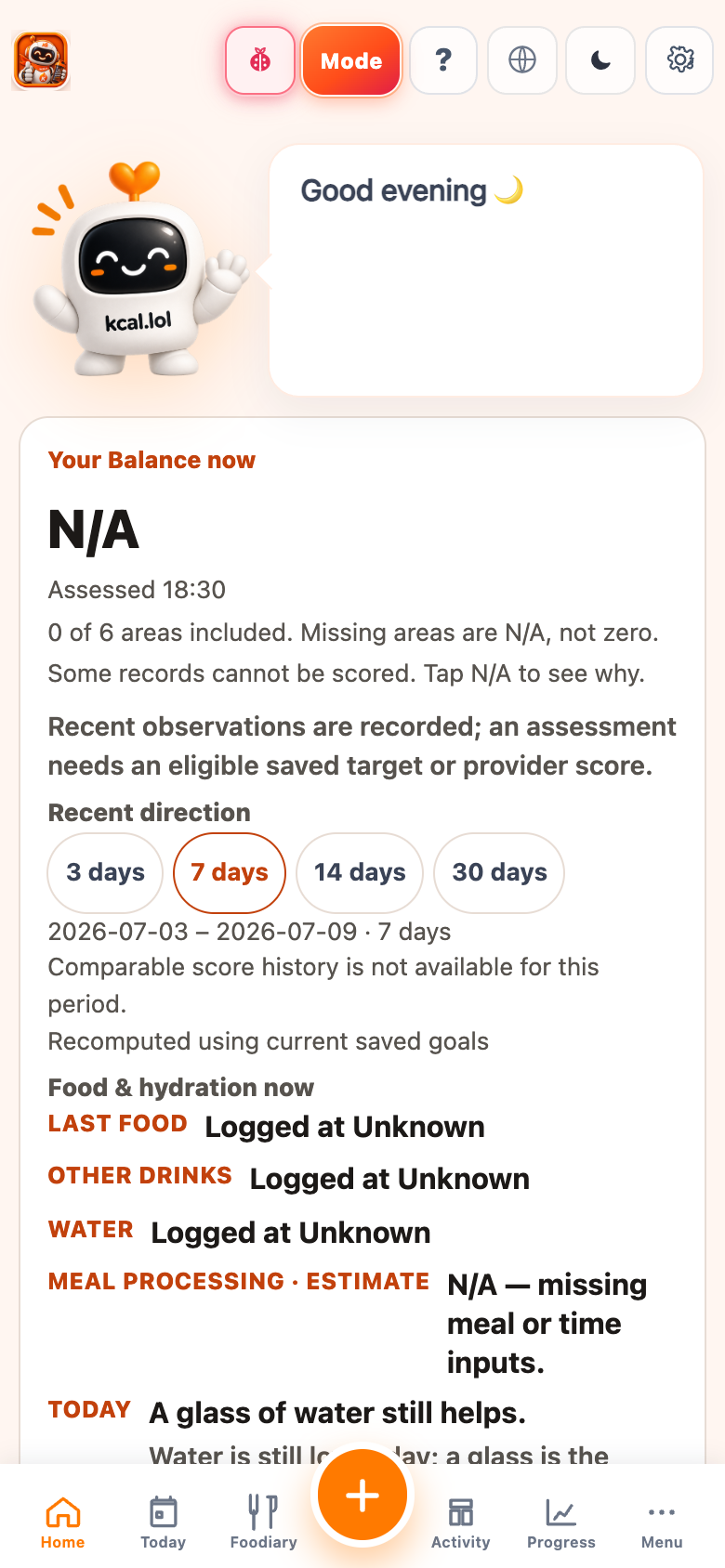
Your Balance is available in Beginner, Standard and Power. Its 0–100 number combines eligible recent Oura sleep, readiness and activity assessments with recorded progress toward your saved protein, water and weekly training targets. Each scored area has equal weight; protein and water are averaged within Nutrition’s one contribution. Goal progress stops at 100 points.
These are index points, not a percentage of health or a verdict on diet quality. Protein and water describe what you have logged so far. Training uses confirmed completed sessions over seven inclusive calendar days. A low progress value can reflect an unfinished day or incomplete logging; it does not establish poor health or inactivity.
The coverage tells you how many of the six possible areas are scored. Missing areas are excluded, not counted as zero. A connected source or a visible observation does not automatically qualify for scoring. Weight, intake and estimated burn remain available inside Energy balance, which has no comparable scoring rule in this version. You can still get a number from other eligible areas.
Open the number and check the evidence
Tap the Balance number to see each area’s points or missing-score reason, its observation date and source, and the recorded amounts and saved targets used in the calculation. Tap an area to inspect its evidence. A planned or ambiguous workout is not confirmed completion. Water contributes only when a hydration record and a saved water target are present; an absent water record is not an observed zero.
If no area qualifies, the number shows N/A or Not scored with an explanation. Records may still be loading, missing, too old, unreadable, or unavailable after a connection expires or is revoked. An observation may also lack a supported provider score or an eligible saved target. Check the area’s reason before adding more records or changing a goal.
Read the 3, 7, 14 and 30-day history
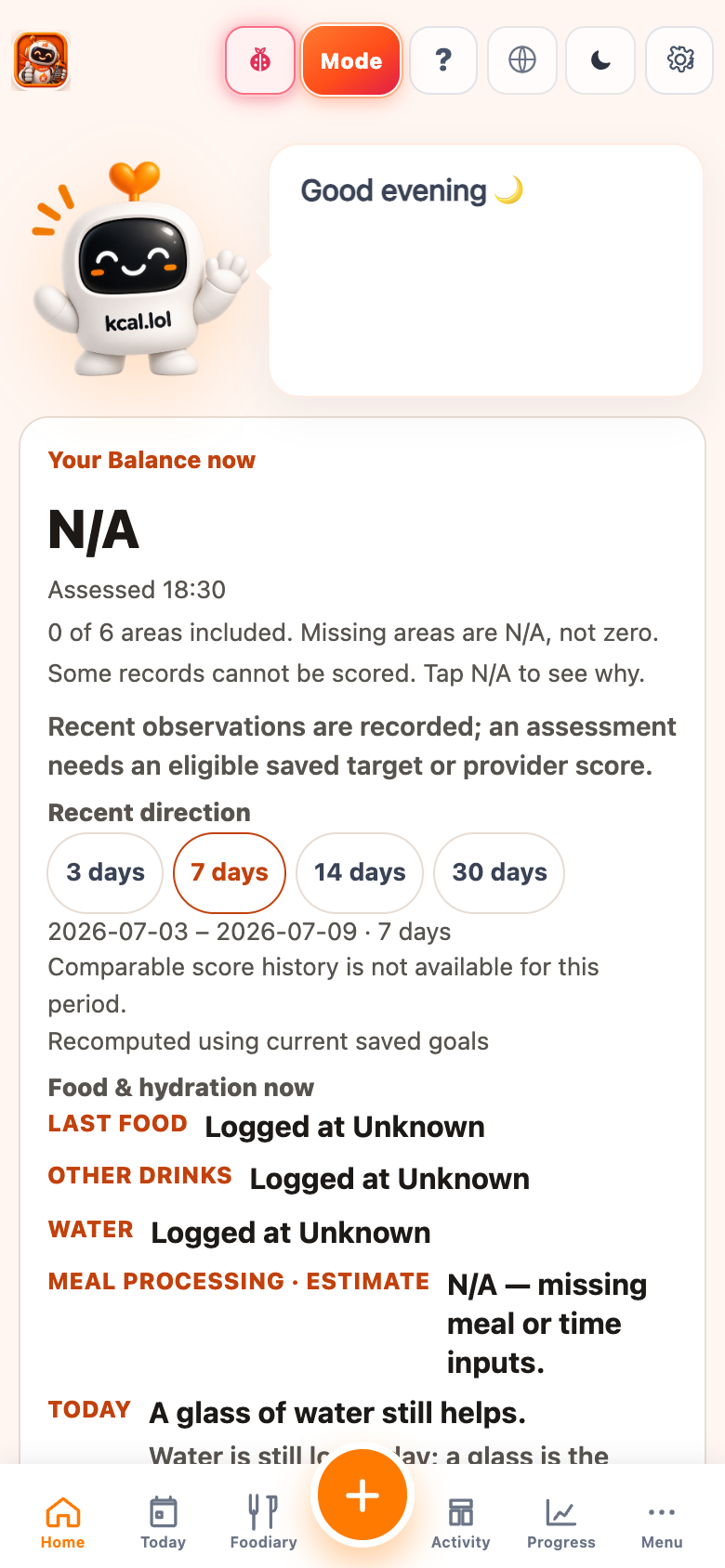
Open Recent direction below Your Balance; in Beginner, expand the row first. Choose 3, 7, 14 or 30 days, then select a recorded day to see its score and area evidence. History is recomputed from your currently visible records using your current saved goals. It is not a saved record of which goals you had on each past date.
Only days with eligible recorded evidence get points. Gaps stay visible, and changing scored areas or comparison rules can prevent a direct point-change comparison. Today is still in progress and is kept separate from completed-day comparisons. A completed calendar day does not prove that every meal or activity was logged.
Experience Mode (PX)
Beginner: greeting, compact Your Balance, a calorie arc with protein/fibre/water strips, and completed meals followed by one NEXT. Tap a meal row to log. No camera bar, no Meal Plan / Activity / Spaces tabs.
Standard: log bar + energy budget (Food · Exercise · Remaining) + health cards.
Power User: same as Standard, plus TEF on the budget and leucine on protein.
PX is beta presentation. No data loss when you switch.
Today’s Progress
Treat it as a compass, not a courtroom. If it doesn’t move, check that the saved row has energy values and that you’re viewing today.
Common mistakes
-
“I added a Foodiary row with no kcal and thought Home was broken.”
Blank-kcal rows don’t teach Progress. Log via Buddy on Home or fill nutrition.
-
“I looked for a Food button next to Camera.”
Food logging is Camera. Type a meal with Text input in the Camera menu. Weight is the fourth chip.
-
“I only open Progress tab, never Home.”
Progress needs inputs. Capture on Home first.
Home is where honesty becomes easy. Tap Camera or Weight, confirm, glance, go.
Open Home Invitation-only product.